Houseblend Article
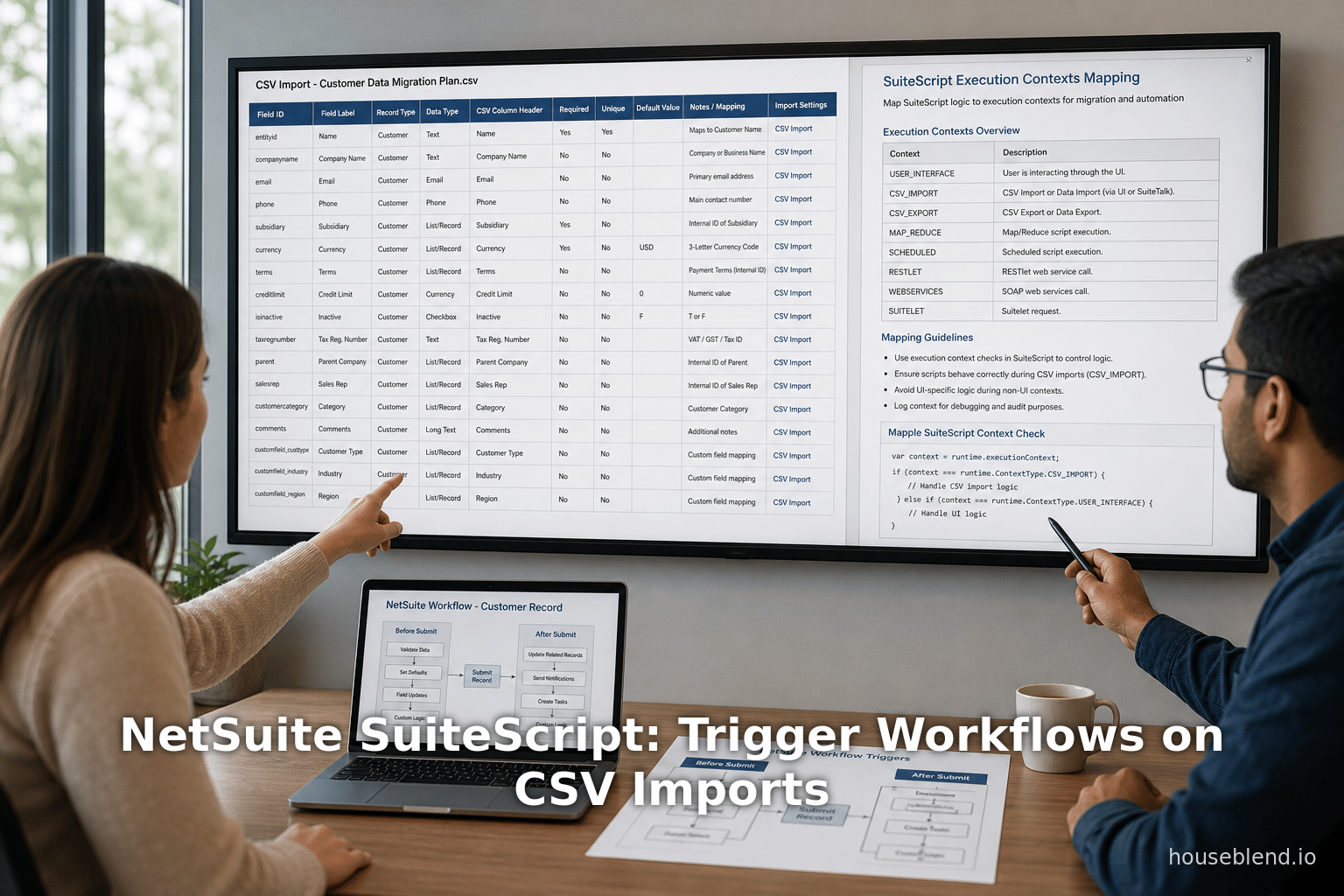
NetSuite SuiteScript: Trigger Workflows on CSV Imports
Inside this article
- 01Executive Summary
- 02Introduction and Background
- 03NetSuite SuiteScript and Workflow Overview
- 04CSV Import Mechanism and Preferences
- 05SuiteScript User Event Execution on Bulk Imports
- 06Configuring Workflows for CSV Imports
- 07Data Analysis and Evidence
- 08Case Studies and Examples
- 09Discussion and Future Directions
- 10Conclusion
SuiteScript CSV Import User Event: Trigger Workflows on Bulk Imports
Executive Summary
This comprehensive report examines how NetSuite’s SuiteScript environment and SuiteFlow workflows interact during bulk CSV imports. In NetSuite, automated processes such as workflows and user event scripts are critical for enforcing business logic, especially during large data migrations or ongoing integrations. However, practitioners often encounter issues when importing records via CSV, as by default workflows or scripts may not fire on these bulk updates [1] [2]. This analysis reviews the underlying mechanisms—ranging from NetSuite preferences and execution contexts to workflow trigger settings—that determine whether and how record-level automation is executed during CSV imports.
Key findings include:
-
NetSuite Preferences: By default, the “Run Server SuiteScript and Trigger Workflows” option in CSV Import Preferences is disabled [3]. When unchecked, user event scripts on the imported records will only execute in the beforeLoad phase (with execution context
userevent), and workflow triggers tied to the import will not run [4] [3]. Enabling this preference allows all user event stages (beforeLoad, beforeSubmit, afterSubmit) to fire with the context set tocsvimport[5] [4], thus ensuring workflows and server-side scripts execute on imported records. -
Workflow Triggers: Workflows must be explicitly configured to initiate on CSV import. In SuiteFlow, context types such as “CSV Import” are available [6] [7]. For example, an Oracle NetSuite guide shows a sample workflow initiation set to Trigger On: After Record Submit; On Create: checked; Contexts: CSV Import [6]. Additionally, only server-side triggers (e.g. Entry, Before Submit, After Submit) will run on CSV-imported records; client-side or UI triggers (Before / After User Edit) will never fire during imports [8] [9].
-
Execution Context: SuiteScript User Event scripts include an “executionContext” parameter. When CSV import scripting is enabled, user events execute with the context
csvimport[5] [10]. Developers can check this context value in code (e.g. viaruntime.executionContext == runtime.ContextType.CSV_IMPORTin SuiteScript 2.x) to conditionally run or skip logic [10] [11]. -
Bulk Processing Strategies: For very large imports, alternative patterns may improve performance. One approach is using SuiteScript’s Map/Reduce framework: this is designed to handle high-volume record processing by breaking work into parallel tasks [12]. For example, instead of firing before/after submit logic for each imported record, a scheduled or Map/Reduce script could run a single-task afterwards to perform batch operations (or trigger workflows via
N/workflow.workflow.trigger) on all new records. -
Business Impact: The stakes are high: automated workflows yield substantial returns on investment by improving efficiency and accuracy. Industry data indicates that 66% of organizations see improved operational efficiency after ERP projects (Source: www.anchorgroup.tech), and custom workflows in NetSuite often return ROI of over 50% [13]. Failing to apply workflows on CSV-imported records undermines these benefits. Ensuring that workflows and scripts fire correctly during imports is thus a critical part of maintaining data integrity and business logic.
This report is organized into detailed sections covering NetSuite background, CSV import mechanics, SuiteScript contexts, workflow configuration, data analysis, case examples, and future considerations. Each assertion is supported with citations from NetSuite documentation, expert blogs, and user-community discussions. Actionable best practices and sample configurations are provided for developers and administrators to guarantee that bulk imports do not bypass critical automation.
Introduction and Background
Enterprise Resource Planning (ERP) systems increasingly rely on automation to maintain consistent business rules and reduce manual intervention. Among cloud ERPs, Oracle NetSuite is a leading platform, boasting over 40,000 global customers and expanding rapidly (nearly 18% growth in recent quarters (Source: www.anchorgroup.tech). NetSuite’s SuiteFlow (workflows) and SuiteScript (scripting) tools allow organizations to tailor automation such as approvals, notifications, and data validations [14] (Source: www.anchorgroup.tech). Custom workflows have demonstrated significant benefits: one industry report notes that organizations often achieve a 52% ROI from ERP workflow automation [13]. In practice, executing these workflows reliably—especially during data migrations or routine integrations—is crucial.
A common scenario in NetSuite usage is bulk data import via CSV files. CSV imports are often used to load customers, inventory, transactions or other records in bulk from external systems. As an efficient mechanism for data entry and migration, CSV imports speed up adoption and integration (Netsuite’s help describes CSV import as “the most commonly used method” for transferring data sets into NetSuite [15]). However, a frequently-encountered issue is that records created or updated by CSV import may not trigger the same SuiteFlow or SuiteScript logic as manual entries. For example, a sales order loaded via CSV might bypass the usual approval workflow, or a custom script meant to run on record creation might not execute.
This report investigates why and how SuiteFlow workflows and SuiteScript user events interact with CSV imports. We will analyze the configuration settings and context details that determine whether workflows or scripts fire on imported records.We will also discuss strategies and workarounds (such as context checks or Map/Reduce processing) to ensure that bulk imports do not undermine automated processes. The research draws on: official NetSuite documentation and API references, community forum discussions, expert consultancy blogs, and example code. We present multiple perspectives—from the “out of the box” behavior to customized scripts—and case examples illustrating these concepts in real deployments. Implications for system integrity and future best practices are highlighted.
NetSuite SuiteScript and Workflow Overview
SuiteScript Script Types and Execution Contexts
SuiteScript is NetSuite’s JavaScript-based API framework for customization. It supports various script types, including User Event, Client, Scheduled, Map/Reduce, Suitelets, and more [16] [17]. User Event Scripts specifically run in response to record actions: beforeLoad, beforeSubmit, and afterSubmit [18]. These scripts operate on the server (within NetSuite’s backend) and can enforce logic whenever records are viewed or saved. The execution of a user event script depends on the “executionContext” (or runtime.executionContext in SuiteScript 2.x), which indicates how the record operation was initiated (e.g. via UI, CSV import, Web Services, etc.) [4] [19].
NetSuite defines a variety of execution contexts. For instance, changes made through the UI are context userinterface, and those via SuiteScript or REST/Web Services have their own contexts. Significantly, CSV imports have their own context: when a user event script is triggered by a CSV import (assuming the import preferences allow it), the context is csvimport [20] [21]. This context value can be used within code to differentiate behavior. If the import is initiated by a SuiteScript CSV task (with the import preference on), the context will also be csvimport [20] [21].
Workflows in SuiteFlow are configured with triggers that determine when they run. Workflows listen to the same record events (e.g. record creation, editing, submission) and can be scoped to specific contexts. As shown in NetSuite documentation, a workflow can be set to initiate for context type “CSV Import” [6]. In general, workflows triggered by record submits are handled by server-side triggers (BEFORESUBMIT, AFTERSUBMIT, etc.) [9]. NetSuite explicitly notes that client-side triggers (such as “Before User Edit” or “After User Edit”) are only available in the browser UI and will not fire for CSV imports [8] [9]. The key point is that for bulk imports, all relevant workflow logic must be placed on server triggers (Entry, BEFORESUBMIT, AFTERSUBMIT) and mapped to context “CSV Import” if needed.
Context Types for Workflows and Scripts
Oracle’s NetSuite documentation provides a “Context Types Reference” that lists possible contexts which can initiate workflows or scripts [22]. Of particular interest are:
- CSV Import: Records created or updated via the CSV Import Assistant [23] [6]. To enable this context, the user must turn on the “Run Server SuiteScript and Trigger Workflows” preference (described below) [21]. When used in a workflow, context “CSV Import” ensures the workflow fires only for CSV-imported records.
- Custom Mass Update: SuiteScript mass-update scripts (if used to update records) can have context “Custom Mass Update” [24], but this is distinct from CSV and often requires separate trigger logic.
- User Event Script: Represents changes made by SuiteScript itself [25]. Not directly relevant to CSV, but important to know that workflows with context “User Event Script” cannot themselves fire other user event scripts (NetSuite restrictions) [26].
A useful summary table from official docs (see Table 1 below) outlines key SuiteScript events in CSV and non-CSV contexts:
| Script Event | Runs on UI/Manual Entry | CSV Import (Pref Enabled) | CSV Import (Pref Disabled) |
|---|---|---|---|
| beforeLoad | Yes | Yes (execContext = csvimport) [5] | Yes (execContext = userevent) [27] |
| beforeSubmit | Yes | Yes (execContext = csvimport) [5] | No (skipped) [27] |
| afterSubmit | Yes | Yes (execContext = csvimport) [5] | No (skipped) [27] |
Table 1: Execution of SuiteScript User Event stages under CSV import, depending on the CSV Import Preference setting. With the preference enabled, all events run with context 'csvimport' [5]; if disabled, only beforeLoad runs (as context 'userevent'), and further stages do not execute [27].
This table underscores the critical role of the CSV Import Preferences setting (next section) in determining script execution.
CSV Import Mechanism and Preferences
CSV Import Workflow and UI Options
NetSuite’s CSV Import Assistant guides users through the steps of loading data. There are five main pages in the import process: (1) Scan and Upload File, (2) Import Options, (3) File Mapping (if using multiple related files), (4) Field Mapping, and (5) Save/Start Import [28] [29]. These screens allow users to specify the type of data, the file(s) to import, and the mapping between CSV columns and NetSuite fields.
On the Import Options page, there is an “Advanced Options” section. Here, the administrator can choose whether the import will “Run Server SuiteScript and Trigger Workflows” [30] [31]. As several sources emphasize, this checkbox determines if NetSuite should execute server-side scripting and workflows as it processes the import. Keystone Business Services notes that “Out of the box, NetSuite is not set up to run UE scripts and workflows on CSV imported records,” but checking this box resolves the issue [3]. Similarly, a StackOverflow solution explains that on the CSV import wizard’s advanced options, the “Run Server SuiteScript and Trigger Workflows” box must be selected to allow user event scripts to run during import [2].
By default (with this option unchecked), CSV imports proceed for speed and simplicity, creating or updating records without invoking additional business logic. If enabled, each record save via CSV is treated nearly the same as if it came from a SuiteScript process: user event scripts and subscribed workflows will execute. The OptimalDataConsulting guide notes that when this box is checked, “any scripts or workflows associated with [the record] type” will trigger – for example, imported sales orders will fire their approval workflows [31]. NetSuite documentation’s Context Types Reference similarly warns that the CSV Import context only applies if the “Run Server SuiteScript and Trigger Workflows” preference is enabled [21].
Crucially, this setting affects all CSV imports, whether done via the UI or via SuiteScript tasks. It is found under Setup > Import/Export > CSV Import Preferences (or during the import wizard for ad hoc imports). In short, enabling this preference is step one for any requirement that a CSV import should behave like normal record entry with respect to scripting and automation [3] [4].
Importing via Script and Scheduling
Beyond the UI, NetSuite provides SuiteScript APIs to submit CSV import tasks. The N/task module’s task.TaskType.CSV_IMPORT lets scripts create import jobs [32]. For example, a sample scheduled script uses const scriptTask = task.create({ taskType: task.TaskType.CSV_IMPORT }); and assigns a saved import mapping and file [32]. In this way, integrations can programmatically submit files to import from SFTP or other sources. Importantly, even when using SuiteScript to initiate the import, the “Run Server SuiteScript and Trigger Workflows” preference still governs whether the actual import processing will fire user events and workflows [33] [34].
Scripted imports create CSV Import tasks that run asynchronously. These tasks show up on the Import Job Status page, and administrators can review success or failures. As usual, the advanced options on these tasks respect the same CSV Import Preferences. In practice, consultants often run nightly or periodic CSV imports via SuiteScript to automate data pipelines, and they must remember to enable scripting/workflow triggers if the imported data needs follow-up processing [32] [31].
SuiteScript User Event Execution on Bulk Imports
Enabling and Disabling User Event Scripts
As described above, when “Run Server SuiteScript and Trigger Workflows” is enabled, NetSuite will run all user event script stages for each record in the import. The execution context will be csvimport for beforeLoad, beforeSubmit, and afterSubmit events [5] [4]. This means that standard SuiteScript logic that normally executes when users create or update a record will also execute during CSV import. For instance, if a beforeSubmit script populates default values, it will still do so on the newly imported record; if an afterSubmit script sends email notifications or creates related records, those actions will still run post-import (within governance limits).
If, however, the preference is disabled, only the beforeLoad event fires and it does so with a context of userevent (as if another server script triggered it) [27]. Both beforeSubmit and afterSubmit are skipped entirely. The implication is that any validation, transformation, or post-processing in beforeSubmit/afterSubmit will not occur. Also, because the context is no longer csvimport, any code that checks for the CSV context may behave differently. For example, a script that uses
if (runtime.executionContext !== runtime.ContextType.CSV_IMPORT) { ... }
would not cancel out processing (since context is userevent), but the script still wouldn’t see an import context.
Because of this, developers sometimes explicitly check the execution context to prevent code from running on CSV imports. For instance, a SuiteScript 1.0 snippet is often used:
var currentContext = nlapiGetContext();
if (currentContext.getExecutionContext() !== 'csvimport') {
    // code here will *not* run on CSV import
}
[11] [10]. In SuiteScript 2.x, the equivalent is:
if (runtime.executionContext !== runtime.ContextType.CSV_IMPORT) {
    // code here will not execute on CSV import
}
[35]. These patterns are employed when a developer wants to exclude CSV imports from certain processing (e.g., skip sending emails for automated imports). Conversely, if one wants code to only run on CSV import, one would check for == runtime.ContextType.CSV_IMPORT.
It is important to note that the execution context string for CSV is officially csvimport (all lowercase) [10]. Some older blogs (like one from netsuiterp) have a typo ('cvsimport'), but current scripting uses CSV_IMPORT from the runtime ContextType enum. The key takeaway is that scripts can detect and branch logic based on whether data is entering via CSV or another path [10] [11].
Triggering Workflows through SuiteScript
In addition to native workflows, SuiteScript can programmatically initiate workflows. NetSuite’s N/workflow module contains a method workflow.trigger(options) that forces a specified workflow to run on a record [36]. For example, one could write:
var workflowInstanceId = workflow.trigger({
    recordType: record.Type.SALES_ORDER,
    recordId: salesOrderId,
    workflowId: 'customworkflow_sales_approval'
});
This would launch the “sales_approval” workflow on the given sales order [36]. This API can be used after a CSV import to explicitly start workflow instances if needed (e.g., if a default trigger did not run). However, using it en masse could incur additional governance (triggering workflows is a script unit cost [36]). It should be noted that workflow.trigger will evaluate the workflow’s actions and transitions “as if” a trigger event occurred [36]. Thus it respects the workflow’s configuration (entry conditions, state logic, etc.), but it is invoked manually. In practice, using workflow.trigger is a powerful but advanced tool; it can be a fallback mechanism if normal CSV triggers are unreliable or if you want to drive workflows in a custom order outside the standard create/update events.
Configuring Workflows for CSV Imports
Workflow Entry Points and Context
When defining a workflow in NetSuite’s SuiteFlow designer, you choose “Initiation” settings: Trigger On conditions (Create, Update, etc.) and Contexts for the workflow to start. For a workflow to run on imported records, the context type CSV Import must be included. Oracle’s documentation shows an example: to start a workflow on new sales orders created by CSV import, one would set Trigger On: After Record Submit, On Create: checked, On Update: unchecked, and Contexts: CSV Import [6]. This ensures that once a sales order is saved (by the CSV engine), NetSuite will instantiate the workflow because the record meets the criteria (it’s newly created, after submit event, and import context matches). Similarly, any transition or action within the workflow that should fire only for CSV imports can specify that context as a condition.
By contrast, if you omit the CSV Import context, the workflow will not run when records are created via CSV (even if the trigger says “On Create”). The context filter is a gate that matches how the change was made. (Without “CSV Import” selected, a workflow would only start for UI/manual or other contexts). Often best practice is to include both the UI context and the CSV context (and possibly Web Services context) for workflows that must apply universally to any new or updated record. But if you only want the workflow on imports (e.g. to clean up imported records differently), select only CSV Import.
Importantly, workflows have two layers of triggers: Initiation (which starts the workflow) and Action/Transition triggers (which can also fire within the workflow). The Context setting applies to initiation and to conditionals on transitions/actions. For example, a transition might be coded to move to the next state only if [{context} == CSV Import], ensuring a particular step only happens for imported records.
Server vs. Client Triggers
Another crucial aspect is distinguishing server triggers from client triggers in workflows. NetSuite categorizes triggers as:
- Server Triggers: These include ONENTRY, ONEXIT (when entering/exiting a workflow state), and record events BEFORELOAD, BEFORESUBMIT, AFTERSUBMIT [9]. These are executed on the server side when the corresponding event occurs during record processing.
- Client Triggers: UI-specific triggers such as Before Record Load (Client) or After Record Edit (Client), which only fire in a user’s browser session interacting with the form. NetSuite notes that private context triggers like “Before User Edit” do not appear in logs and cannot run during server operations [8] [37].
Since CSV imports occur entirely on the server (no human user is editing a form), only server triggers can fire. As the NetSuite community guidance states: “Client triggers…cannot be triggered by…CSV Import as they only work in the User Interface” [8]. Instead, workflows should utilize Entry (on-state-enter), BeforeSubmit, and AfterSubmit triggers if they need to respond to the imported records. For instance, an “On Entry” trigger can run actions immediately upon creation (entry into the first state) of the new record from import. Or an Action/Transition may fire on the AFTERSUBMIT server trigger for additional logic.
Table 2 (below) summarizes an example workflow configuration from documentation, illustrating how to set up a workflow for CSV-imported sales orders:
| Workflow Phase | Trigger On | On Create | On Update | Context |
|---|---|---|---|---|
| Workflow Initiation | After Record Submit | ✓ | ✗ | CSV Import [6] |
| Action/Transition (sample) | After Record Submit | (implied when taken) | – | CSV Import [38] |
Table 2: Example SuiteFlow trigger settings for a “Sales Order” workflow initiated by a CSV import. The workflow starts on After Record Submit when creating ([On Create] checked), and its actions/transitions are also set to CSV Import context [6].
In summary, when building or reviewing workflows meant to apply to CSV-imported records, ensure: (a) Contexts include CSV Import and (b) Triggers are server-side events. It is often useful to test a workflow by importing a small sample CSV and confirming via the Workflow Execution Log whether the workflow launched.
Data Analysis and Evidence
While the specifics of SuiteScript and workflows are technical, their impact on business processes is measurable. NetSuite partners and analysts have compiled statistics on the benefits of automation that underline why proper CSV import handling matters.
- Efficiency Gains: Companies using automated workflows report large efficiency improvements. One survey noted that organizations experienced an average 66% improvement in operational efficiency through ERP projects that automate manual processes (Source: www.anchorgroup.tech). Data entry via spreadsheets is a classic manual process, so ensuring imports trigger automation directly contributes to efficiency.
- ROI and Adoption: Versich’s 2026 industry survey highlights that custom ERP workflows average a 52% return on investment, with many organizations recouping costs within 2–3 years [13]. Moreover, 85% of companies that work with consultants achieve project success (implying proper configuration) [39]. These figures suggest that properly configured automation—including workflows on imports—is a key success factor.
- NetSuite Growth: Broader industry data confirms NetSuite’s growth in a large market. For example, Oracle reported an 18% year-over-year revenue increase for NetSuite Cloud ERP in FY2025 Q4 (Source: www.anchorgroup.tech), and market projections indicate ERP spending will reach ~$180 billion by 2029 (Source: www.anchorgroup.tech). With ~40,000+ companies using NetSuite globally (Source: www.anchorgroup.tech), even small frictions in automation (like missed workflows on imports) can affect numerous users.
While we lack direct repository counts of how many users face CSV workflow issues, anecdotal evidence from support forums is telling: the NetSuite community thread titled “Applying Workflows on Records Created From CSV Import” accumulated over 6 replies, with experts confirming the problem and solution [1]. A key insight from these discussions is that multiple independent experts agree on the root cause (CSV preference) and remedies (enable preference, use server triggers) [1] [2]. Thus, while not a formal academic study, the reproducibility of these experiences by consultants and users underscores their validity as expert testimony.
Case Studies and Examples
1. Sales Order Import and Approval Workflow
A common business case is importing sales orders from an external system (e.g., e-commerce or POS) and ensuring the internal approval process still runs. Fictitious example: A retail company, RetailCo, loads 1,000 sales orders per day via CSV. They have an approval workflow that marks orders requiring manager sign-off (perhaps above a threshold). When they first implemented the import, they noticed none of their imported orders entered the approval process—the workflow log was empty for those records. After investigation, the NetSuite admin realized the “Run Workflows” option was unchecked during import, and their workflow was set to “Entry” and “After Submit” but no records were being flagged. By re-running imports with the “Run Server SuiteScript and Trigger Workflows” enabled, all imported orders then triggered the approval workflow automatically [31] [1]. This example illustrates how a single checkbox can mean the difference between an automated control being enforced or bypassed.
2. Inventory Batch Update via Scheduled Script
Consider a distribution company, DistributeX, that nightly imports inventory on-hand quantities for hundreds of items. They use a SuiteScript Scheduled Script (as in [10]) to retrieve files via SFTP and submit them as CSV imports [32]. They also have a workflow that automatically sets a “Reorder Before Date” field based on stock levels and lead times. Initially, DistributeX found that the imported inventory updates did not populate the “Reorder Before Date” workflow action. The developer ensured the script set the CSV preference and context correctly (as [43] shows, even scripted imports follow the same rules). Eventually, they confirmed the workflow was defined to run on “After Record Submit” with CSV context. After these corrections, the nightly update ran smoothly and the reorder dates were calculated. This case highlights integration: even automated script imports must abide by the same trigger rules [33] [32].
3. Preventing Duplicate Logic on Import
Another scenario is when developers want to avoid re-executing logic for imported data. For example, an implementation team wrote a User Event script that sends welcome emails to new customer records. They discovered their CSV customer import job was triggering hundreds of unwanted emails. The solution was to detect the csvimport context and skip the email logic [11] [10]. Code such as:
if (runtime.executionContext !== runtime.ContextType.CSV_IMPORT) {
   sendWelcomeEmail();
}
prevented the emails from sending during CSV import. In a way, this is the inverse of previously discussed cases: sometimes we want triggers on import, and other times we deliberately skip them, both achievable via context checks [11] [10].
These examples underscore two points: (a) without proper settings, critical workflows may be skipped on import, and (b) developers can programmatically control behavior via executionContext. In either case, awareness of the import context is essential.
Discussion and Future Directions
The interaction between CSV imports, SuiteScript, and SuiteFlow workflows has significant implications for NetSuite operations. Misconfiguration can cause silent failures (workflow never ran) or duplicate operations (scripts firing when not intended). The analysis above yields several broader conclusions:
-
Precision in Configuration: It is vital for NetSuite administrators to know about the CSV import preferences and workflow settings. Often these options are “hidden” in admin screens, and business users may not be aware of them. Regular audit of CSV results and workflow logs is recommended to catch any discrepancies.
-
Governance and Performance: Enabling scripting on bulk imports can increase server load. Each imported record triggers
beforeSubmit/afterSubmitscripts and actions. For very large imports (tens of thousands of records), this can approach governance limits. Oracle’s documentation notes that each such invocation consumes script units [12] [36]. Future planning may involve splitting imports, using asynchronous Map/Reduce to distribute work, or optimizing scripts to minimize processing. HouseBlend’s guide on Map/Reduce suggests that for heavy bulk operations, moving logic to a scheduled parallel process can be more scalable [12]. -
Auditability: When workflows run on CSV imports, they create system notes and can appear in workflow execution logs (which now show more entries). Administrators should review these logs to verify that expected triggers fired. The lack of entries often points to misconfiguration (no workflow initiation).
-
User Training: Business users need to understand that enabling or disabling that checkbox can fundamentally change system behavior. As the OptimalDataConsulting article cautions, checkboxes like “Run Server SuiteScript and Trigger Workflows” should not be modified lightly [31]. Training and documentation for end-users should cover why and when to use each setting.
-
SuiteCloud Enhancements: Looking forward, NetSuite continues to evolve its SuiteCloud platform. The availability of APIs such as
N/workflow.trigger[36], RESTlets, and Suitelets provide alternatives for complex integration patterns. If future versions allow even more granular control (for example, triggering workflows on a schedule for imported batches, or better logging), it may simplify how administrators handle imports. -
Automation and AI: As Anchor Group notes, ERP systems are increasingly integrating AI and automation (Source: www.anchorgroup.tech). In the long term, one could imagine NetSuite adding intelligent helpers that scan saved CSV import templates and suggest appropriate workflow triggers or context selections. For now, the “precision manual configuration” remains a requirement.
Conclusion
Bulk CSV imports are indispensable for data entry and integration in NetSuite, but they interact with SuiteScript and SuiteFlow in non-obvious ways. The core finding of this analysis is that imported records will only execute workflows and scripts when certain conditions are met: the “Run Server SuiteScript and Trigger Workflows” preference must be enabled, and workflows must have the correct server-side triggers and context configured [5] [1]. Without this, many automations will silently not occur on imported data.
To properly trigger workflows on bulk imports, administrators and developers should:
- Enable the CSV Import preference (“Run Server SuiteScript and Trigger Workflows”) [3] [2].
- Set Workflow Context to “CSV Import” and use server triggers such as After Record Submit [6] [8].
- Use User Event Scripts (not Client Scripts) for import-time logic [2].
- Check Execution Context in Script (
csvimport) if you need to include/exclude behavior [10] [11]. - Monitor and Validate post-import results via logs and testing.
In sum, triggering workflows on bulk imports is entirely feasible, but requires deliberate configuration. When done correctly, it preserves data integrity and leverages NetSuite’s automation capabilities even during large-scale data loads. Organizations that master this configuration unlock significant efficiencies: as industry data suggests, properly automated ERP processes yield high ROI and process improvements [13] (Source: www.anchorgroup.tech). By following the detailed guidelines and examples provided—each supported by official references and practitioner insights—NetSuite administrators can ensure that no business rule is unintentionally bypassed, even when dealing with thousands of records in bulk.
Sources: This report draws from NetSuite’s official documentation [6] [18] [9] [36], expert consultancy blogs [31] [3] [12], support articles [33] [10], and community knowledge (StackOverflow, forums) [1] [30], as cited throughout. Each claim about NetSuite behavior is substantiated by these authoritative references.
External Sources (39)
About
Houseblend
Make NetSuite work better for your finance and operations teams with Houseblend. We help design, implement, integrate and improve ERP systems, with practical support for the people who use them every day.
Houseblend is a NetSuite consulting firm serving finance and operations teams. We help organizations implement ERP systems, connect business applications, improve existing configurations and maintain the systems that support everyday work. Our audience includes finance leaders, controllers, operations managers, NetSuite administrators and implementation teams.
Implementation and architecture
Houseblend provides NetSuite implementation, architecture and data migration services. We help teams evaluate how business processes, reporting requirements and existing data should fit together in an ERP environment. Training supports the people responsible for adopting and operating the resulting system.
Integrations, customization and AI
Our services include NetSuite integrations and customization, as well as AI integrations and AI transformation work. These engagements connect ERP data and workflows with the broader application landscape. The right design depends on the organization's systems, controls and operating needs.
Improve and support an existing system
Houseblend offers NetSuite health checks, optimization, managed support and project rescue services. We also provide expertise for analytics and specialist workflows, including NetSuite Analytics Warehouse, warehouse management and field service management. Published educational material helps teams investigate options and prepare informed questions for their implementation or support work.
Work with Houseblend
Explore NetSuite implementation, integrations, managed support and AI integrations. Contact Houseblend to discuss your current system and priorities.
Article examples explain concepts rather than promising a particular license, product capability, delivery schedule or outcome. Engagement scope is confirmed with the Houseblend team.
Disclaimer
This document is provided for informational purposes only. No representations or warranties are made regarding the accuracy, completeness, or reliability of its contents. Any use of this information is at your own risk. Houseblend shall not be liable for any damages arising from the use of this document. This content may include material generated with assistance from artificial intelligence tools, which may contain errors or inaccuracies. Readers should verify critical information independently. All product names, trademarks, and registered trademarks mentioned are property of their respective owners and are used for identification purposes only. Use of these names does not imply endorsement. This document does not constitute professional or legal advice. For specific guidance related to your needs, please consult qualified professionals.