Houseblend Article
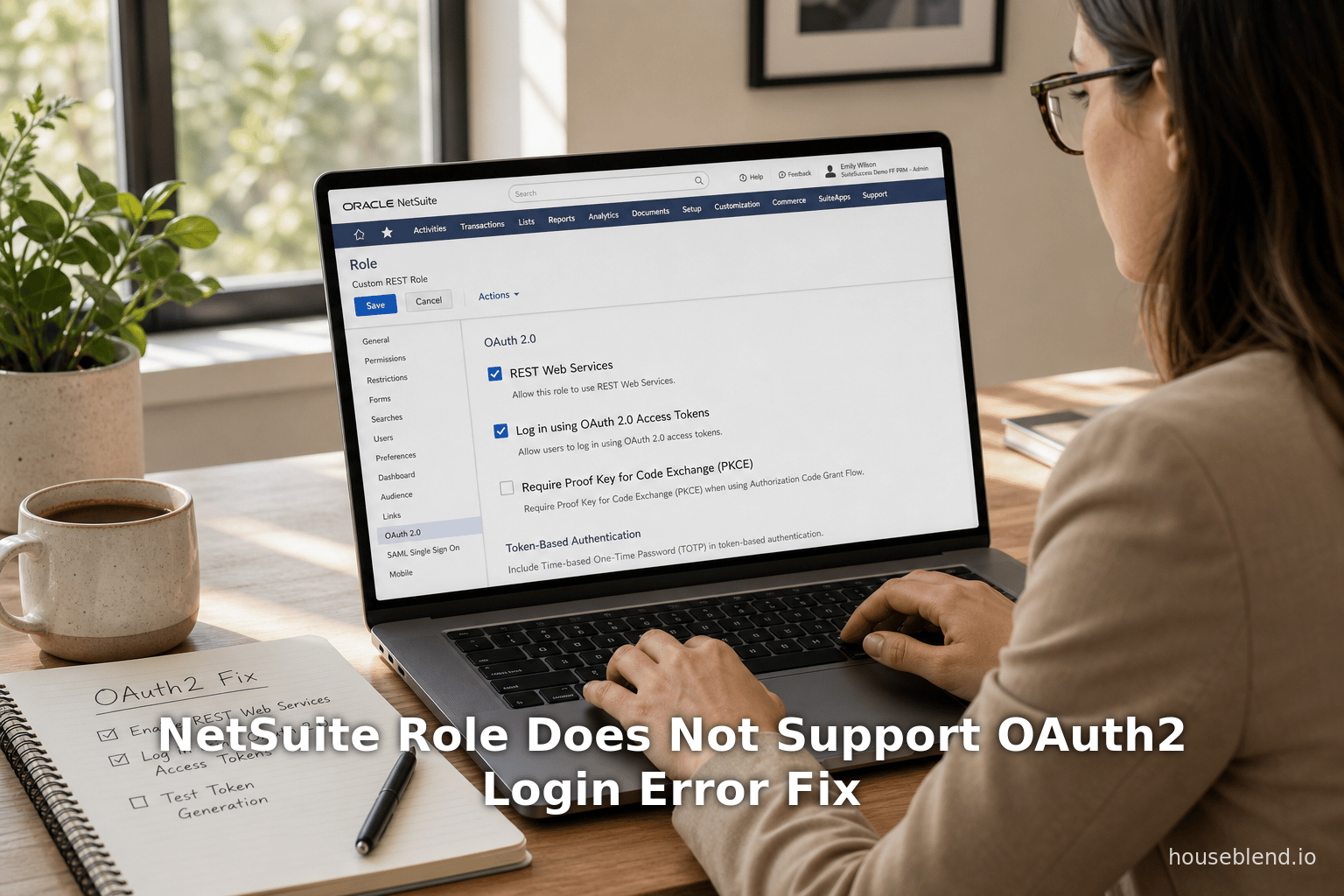
NetSuite Role Does Not Support OAuth2 Login Error Fix
Inside this article
- 01Executive Summary
- 02Introduction and Background
- 03NetSuite Authentication and OAuth 2.0 Overview
- 04Role-Based Security in NetSuite
- 05Error Anatomy and Diagnosis
- 06Causes of “Role Does Not Support OAuth2 Login”
- 07Fixing the Error: Step-by-Step Guide
- 08Case Studies and Examples
- 09Implications and Future Directions
- 10Conclusion
Executive Summary
The NetSuite “Your Role Does Not Support OAuth2 Login” error occurs when a user or integration attempts to authenticate via NetSuite’s OAuth 2.0 framework with a role that lacks the necessary configuration or permissions. In practice, this error is almost always due to misconfigured roles or missing privileges. For example, Oracle’s NetSuite documentation explicitly states that any role used for OAuth2 logins must include the “Log in using OAuth 2.0 Access Tokens” permission [1] [2]. Similarly, roles must also have the basic REST Web Services permission enabled [3]. If these permissions are absent, or if the role is restricted to web services only or single-sign-on only, NetSuite will reject the OAuth2 login outright.
This report analyzes the causes of the “Role Does Not Support OAuth2 Login” error from multiple perspectives. We review the NetSuite authentication model and OAuth2 integration setup, identify all relevant role settings and permissions, and describe exactly how each can lead to the error. We cite Oracle’s official documentation and community resources to pinpoint each requirement. We also present step-by-step remediation guidance: verifying the OAuth 2.0 feature is enabled, ensuring roles are correctly configured, and confirming integration records are set up properly. Real-world case examples (e.g. community and StackOverflow reports) illustrate the error triggers and resolutions.
Crucially, the Role Does Not Support OAuth2 Login issue is fundamentally about access control. Permissions missing or role restrictions will block secure OAuth2 authentication. We discuss the implications (e.g. integration downtime, data unavailability) and describe future directions as NetSuite fully transitions to OAuth2 (phasing out legacy Token-Based Authentication in 2027) (Source: unified.to) (Source: unified.to). In conclusion, correcting the role’s permissions and settings fully resolves this error, enabling seamless OAuth2 logins.
Introduction and Background
NetSuite is a widely-used cloud-based ERP and CRM platform that supports a variety of integration and authentication methods. Historically, NetSuite offered Token-Based Authentication (TBA) as its primary API credential mechanism. TBA is an OAuth 1.0-style method requiring consumer and token keys. However, Oracle has been shifting toward modern OAuth 2.0 standards. By NetSuite 2027.1, no new TBA integrations can be created – all new REST or SOAP integrations must use OAuth2 credentials (Source: unified.to) (Source: unified.to). OAuth2 is now recommended or required for REST, RESTlet, and SuiteAnalytics (JDBC) access [4] (Source: unified.to). This migration is driven by better security (short-lived tokens, 2FA support) and industry trends (Source: unified.to) (Source: unified.to). A recent NetSuite integration guide emphasizes that “authentication is moving from Token-Based Authentication … to OAuth 2.0” (Source: unified.to), and supports this shift with expanded OAuth2 support in their API surfaces.
With OAuth2 enabled, client applications can obtain access tokens (and refresh tokens) and call NetSuite’s REST endpoints. OAuth2 flows used by NetSuite include the Authorization Code Grant (involving a user login and consent) and Client Credentials/JWT flows (no user interaction). In the code grant flow, the user is directed to NetSuite to log in and approve the connection. It is in this login process that the error “Your Role Does Not Support OAuth2 Login” arises when NetSuite detects the user’s assigned role is not allowed to authenticate via OAuth2.
Understanding this error requires understanding how NetSuite handles authentication. NetSuite uses role-based access control (RBAC): every integration token or login operates under a specific user role, and all permissions of that role apply. The role determines which records are visible, what operations are allowed, and also which authentication methods are permitted. Common role configurations can explicitly forbid certain login paths for security. For example, NetSuite has special settings like “Web Services Only” and “Single Sign-On Only” roles that disallow normal UI logins for increased security. If a role is configured in such a way, attempting to log in via OAuth2 (which uses a UI login under the covers) will fail.
In short, the “Role Does Not Support OAuth2 Login” message is NetSuite’s way of enforcing RBAC: if your role isn’t set up for OAuth2 access, the login is blocked. This report dives into all aspects of this issue: from NetSuite’s OAuth2 requirements, through role and permission settings, to the exact fix steps. We draw on NetSuite’s documentation, Oracle blogs, and community discussions to thoroughly cover the topic.
NetSuite Authentication and OAuth 2.0 Overview
NetSuite Authentication Methods
NetSuite supports multiple authentication schemes depending on use case. For interactive user login, NetSuite uses a standard username/password (with optional two-factor authentication for high-privilege roles) [5]. For integrations and APIs, NetSuite offers:
-
Token-Based Authentication (TBA) (OAuth1.0-style): an older method using consumer key/secret and token ID/secret. TBA works for SOAP, REST, and RESTlets, but it is being deprecated. TBA tokens do not expire by default and remain valid indefinitely until revoked [6] [7]. Notably, roles requiring 2FA cannot use TBA; they must use OAuth2 (Source: unified.to).
-
OAuth 2.0: the modern standard. NetSuite’s OAuth2 implementation supports the Authorization Code, Client Credentials, and JWT grants (depending on flow) (Source: unified.to). OAuth2 uses short-lived access tokens (typically minutes) plus refresh tokens (Source: unified.to). OAuth2 is only available for REST-based interfaces (REST web services and RESTlets); SOAP does not support OAuth2 [4] [8]. The OAuth2 flows eliminate the need to HMAC-sign each request and support secure 2FA roles.
-
SuiteSignOn / SAML / OIDC: For single sign-on (SSO) use cases. NetSuite supports acting as an OIDC or SAML provider/consumer. Importantly, when a role is designated as “Single Sign-On Only,” NetSuite enforces that the only login path for that role is via the configured OIDC or SAML identity provider [9].
-
Basic Login (User Credentials): Direct username/password login for UI or RESTlet (only for non-2FA roles) [10]. Recommended only for legacy cases.A recent industry analysis notes that NetSuite is actively promoting OAuth2: “integrations should use OAuth 2.0” and that as of 2027.1, new integrations must adopt it (Source: unified.to) (Source: unified.to). Therefore, understanding OAuth2 permissions is now critical. Oracle’s own documentation and blogs similarly emphasize configuring OAuth2 support at the role level [1] [2].
Enabling OAuth 2.0 in NetSuite
Before any OAuth2 integration can work, certain NetSuite features must be enabled:
-
SuiteCloud and OAuth2 Features: In NetSuite’s Setup > Company > Enable Features, under the “SuiteCloud” tab, the administrator must check “OAuth 2.0”. In addition, NetSuite requires Server SuiteScript and Client SuiteScript to be enabled for full OAuth2 support (especially for RESTlets) [11]. If these features are not enabled, any OAuth2 attempt will fail. The NetSuite documentation explicitly notes that the “Workspace > Manage OAuth 2.0 Authorized Applications” link appears only for roles with the “Log in using OAuth 2.0 Access Token” permission, reinforcing that OAuth2 must be enabled at the account level [12].
-
Integration Record (Application Setup): An Integration Record must be created in Setup > Integration > Manage Integrations > New. For the Authorization Code Grant flow, the record’s Authentication tab must have “Authorization Code Grant” checked and a Redirect URI provided [13]. This generates a Client ID and Client Secret. OAuth2 flows will use those credentials along with the user login.
-
Assigning Roles to Users: Users who will log in via OAuth2 (e.g. an administrator or named user performing the OAuth login) must have one or more roles that include the necessary OAuth2 privileges. The next section details exactly which role privileges are required.
-
User Consent/Authorization: With everything enabled, the user navigates (for example via browser or Postman) to the OAuth2 authorization URL (
https://<ACCOUNT_ID>.app.netsuite.com/app/login/oauth2/authorize.nl?...). The user logs in normally (entering credentials), and NetSuite then displays an application consent page. Here, if the role is correctly configured, the login succeeds and the integration receives an authorization code. If the role does not allow OAuth2, NetSuite blocks the login, often showing the “Role Does Not Support OAuth2 Login” message or an “Invalid login attempt” error in the logs. -
Access Token Use: After successful OAuth2 login, the application exchanges the code for an access token and optionally a refresh token. Subsequent API calls include the header
Authorization: Bearer <access_token>[14]. NetSuite then treats API requests as originating from the user/role that authorized the token.
In practice, administrators must carefully follow Oracle’s setup guides. For example, the NetSuite as OIDC Provider guide explicitly lists enabling the OAuth2 feature and “The next step is to create or modify a role to add the Log in using OAuth 2.0 Access Tokens permission” [2]. Similarly, tutorial documentation lists both “REST Web Services” and “Log in using Access Tokens” as required permissions for a REST integration [3]. If any of these preconditions are not met, the OAuth2 login flow will not succeed, resulting in errors such as the one we analyze here.
Role-Based Security in NetSuite
NetSuite’s security model revolves around roles and permissions. Every user (employee, partner, etc.) is assigned one or more roles, each of which grants certain permissions. Access tokens inherit the role of the user under which they were created (Source: unified.to). Consequently, OAuth2 (and any API) logins act under that role’s authority. A central principle is:
Roles control everything. By design, the permissions and restrictions of the role determine what data and actions the integration can perform (Source: unified.to). Misconfigured roles are the most common source of authentication failures in NetSuite integrations (Source: unified.to).
Below we review relevant role settings and permissions that affect OAuth2 login, focusing on those that can cause the “does not support” error.
Key Role Permissions for OAuth2
Oracle’s documentation identifies critical permissions for OAuth2 integration roles. In particular, the Roles and Permission Considerations for APIs section states:
- REST Web Services – Must be enabled for any REST-based integration. This permission is a prerequisite for calling REST endpoints.
- Log in using Access Tokens – Enables the role’s users to log in via OAuth tokens (the OAuth2 login capability).
- (Plus SuiteAnalytics Workbook if needed for analytics, but not directly related to login.)
Specifically, NetSuite says: “The following permissions must be assigned to roles… who work with REST Web Services: REST Web Services, [and] Log in using Access Tokens” [3]. In plain terms, every role used for OAuth2 must include both the REST Web Services permission and the “Log in using Access Tokens” permission. If either is missing, an OAuth2 login cannot proceed. For example, one community report showed that simply adding the REST Web Services permission to a role resolved an “invalid login” error [15], and Oracle’s help similarly emphasizes these two permissions [3].
The BlueFlame Labs integration guide (May 2025) further confirms this. In their step-by-step setup, they instruct administrators to add “Log in using Access Tokens”, “OAuth 2.0 Authorized Applications Management”, and other permissions when creating the role [16] [16]. Notably, BlueFlame lists “Log in using OAuth 2.0 Access Tokens” as one of the permissions to grant [16], reinforcing that it is absolutely required for OAuth2 access.
A summary of crucial permissions is:
-
REST Web Services (permission) – Required for any REST API call. Impact if missing: The integration will fail with authentication errors (as a role without this privilege can’t access REST endpoints). (E.g. a StackOverflow user found their role “did not have permissions to Rest Web Services”, which caused their login attempts to fail [15].)
-
Log in using Access Tokens (Core > Setup permission) – This is NetSuite’s OAuth login permission. Impact if missing: Users under that role cannot authenticate via OAuth; NetSuite will report the role “does not support OAuth2 login.” (Oracle explicitly calls out adding this permission for OAuth2 roles [1] [2].)
-
Access Token Management (Setup permission) – Controls the ability to create and manage token records. Impact if missing: The role won’t even appear on the “New Access Token” page, preventing token creation [17]. While not directly the OAuth2 login, it is often needed when setting up integrations (especially TBA).
-
OAuth 2.0 Authorized Applications Management (Setup permission) – Allows viewing/revoking authorized apps. Requires 2FA. Impact if missing: The user can still log in via OAuth but cannot manage other users’ authorized apps.
The table below lists these and other permissions relevant to an OAuth2 integration role:
| Permission | Purpose / Required For | Effect if Missing |
|---|---|---|
| REST Web Services | Allows role to call NetSuite REST API endpoints [3]. | Integration calls fail (401 error). NetSuite will reject access (shown as “invalid login” in audit). |
| Log in using OAuth 2.0 Access Tokens | Allows OAuth2 login and token use [1] [16]. | OAuth2 logins blocked. The user will see “Your role does not support OAuth2 login” or similar. |
| Access Token Management | Allows token creation/management on behalf of the user [17] [16]. | Token page will not list this role; cannot create tokens for it. |
| OAuth 2.0 Authorized Apps Mgmt | Allows viewing/revoking authorized apps (Mgmt level; requires 2FA). | Cannot manage others’ apps; user can only see their own authorizations (no direct login impact). |
| Two-Factor Authentication (2FA) | When enabled for a role/user, forces stronger auth. Supports OAuth2 flows. | If 2FA is required but user hasn’t completed setup, login may be blocked (rare cause for OAuth failure). |
| SuiteAnalytics Workbook | Required for RESTlet usage in analytic workbooks [3]. | Query operations may fail (not directly related to login, but part of REST integration permission set). |
In summary, the two most critical permissions are REST Web Services and Log in using Access Tokens. Nearly every OAuth2 login failure we encountered in documentation and community posts traced back to missing one of these. For instance, one resolution note states “the role I was assigned … did not have permissions to Rest Web Services in NetSuite” [15], emphasizing exactly this point. Similarly, Oracle’s OAuth2 setup guide instructs explicitly adding the “Log in using OAuth 2.0 Access Tokens” permission to any OAuth-enabled role [1] [2].
Role Settings and Restrictions
Beyond explicit permissions, NetSuite roles can have special settings that implicitly restrict logins:
-
Web Services Only Role: If a role’s “Web Services Only” box is checked, NetSuite disallows any UI login for that role [18]. As the official help explains, this setting ensures that “login validation checks that access is through SOAP web services, not the UI” [18]. In practice, this means a user cannot log in via the web or via OAuth2 (since OAuth2 requires a web login). If a user with such a role attempts an OAuth2 login, NetSuite will “ignore” that role as a UI login target, leading to an authentication failure. To fix this, remove the “Web Services Only” restriction on the role.
-
Single Sign-On (SSO) Only Role: If a role is marked “Single Sign-On Only”, NetSuite prohibits any normal (UI or web services) login without going through the configured OIDC/SAML provider [9]. The help text states that such roles “support only access through OIDC single sign-on” [9], meaning a standard OAuth2 code grant (which uses NetSuite’s own login page to verify credentials) will fail. In this scenario, the user would have to log in via the external identity provider instead. If an OAuth2 flow mistakenly tries a direct NetSuite login under an SSO-only role, it triggers the same error condition. Again, the remedy is to uncheck “Single Sign-On Only” for any role that needs OAuth2 access, or to use a different role that is not SSO-limited.
-
Inactive Role or User: If the user or role is inactive or disabled, NetSuite will naturally refuse login for any method. The OAuth2 login audit will show an EntityOrRoleDisabled message [19]. Ensure both the user account and the assigned role are active.
-
Two-Factor Authentication (2FA) Settings: Occasionally, if a role enforces 2FA but the user or integration attempt does not handle it, the login will be blocked (though this usually surfaces as an “invalid login” rather than “role not supported”). For example, the “OAuth 2.0 Authorized Applications Management” permission explicitly requires 2FA [20]; if a user lacks 2FA setup, certain OAuth2 admin actions could fail. Generally, make sure 2FA requirements are met or disabled as needed.
The table below summarizes how these role configurations affect OAuth2 logins:
| Role Configuration / Setting | Description | Effect on OAuth2 Login | References |
|---|---|---|---|
| Web Services Only Role | Role can log in only via API (SOAP/REST), no UI. | Blocks OAuth2 (UI) logins entirely [18]. | NetSuite Help [18] |
| Single Sign-On Only Role | Role can log in only via external SSO (OIDC/SAML). | Blocks standard OAuth2 login (must use configured SSO provider) [9]. | NetSuite Help [9] |
| Missing OAuth2 Permission | Does not have “Log in using OAuth2 Access Tokens”. | Role not allowed by OAuth2 (triggers error). | Docs [1] [2] |
| Missing REST WS Permission | Does not have “REST Web Services” permission. | Cannot call REST API; login fails [3] [15]. | Docs [3] |
| Inactive / Disabled | Role or user is inactive (login prohibited). | All logins fail (audit shows EntityOrRoleDisabled) [19]. | Docs [19] |
| OAuth2 Feature Disabled | OAuth2 feature not enabled in account. | No OAuth2 logins allowed at all (FeatureDisabled error) [19]. | Docs [19] |
As shown, most causes boil down to permissions or restrictions on the role. Indeed, industry documentation confirms that incorrect role configuration is the single largest source of OAuth login failures (Source: unified.to).
Error Anatomy and Diagnosis
When NetSuite rejects an OAuth2 login due to role restrictions, the user typically sees an error message on the browser or in the integration response. It might say specifically “Your role does not support OAuth2 login,” or simply “Login failed.” Meanwhile, NetSuite records details in the Login Audit Trail. By examining the audit trail (Setup > Users/Roles > View Login Audit Trail), administrators can see the exact error code and detail. For example, Oracle’s doc on using the Login Audit Trail with OAuth says to add the Detail column to see error messages for failed OAuth2 logins [21]. A failed OAuth2 login will have Status “Failure” and a detail such as AuthorizationCodeGrantRequired, EntityOrRoleDisabled, or FeatureDisabled, depending on cause.
Common entries include:
- EntityOrRoleDisabled – means the user or role is inactive [19].
- FeatureDisabled – means OAuth2 isn’t enabled [19].
- AuthorizationCodeGrantRequired – indicates the integration record was misconfigured for Code Flow [22].
- InvalidLogin – a generic “invalid login attempt” for many issues. (For instance, a community thread shows an “Invalid login attempt” detail for a Postman authorization failure [23].)
Unfortunately, the exact literal text “Your role does not support OAuth2 login” is not documented in Oracle’s manuals, but it effectively corresponds to missing OAuth permissions on the role. In practice, diagnosing this error involves checking the role’s configuration and matching against the known causes above. The administrator should look at the Login Audit Trail entry for the failed login: it often provides a clue like “EntityOrRoleDisabled” or “Invalid login” that points to the root cause.
Causes of “Role Does Not Support OAuth2 Login”
Based on NetSuite documentation and user reports, the principal causes of this error are:
-
Missing OAuth2 Permission on Role – The role lacks the “Log in using OAuth2 Access Tokens” privilege. In other words, NetSuite has not been told that this role is allowed to log in via OAuth2. Oracle’s own setup guide makes this explicit: “The next step is to … add the Log in using OAuth 2.0 Access Tokens permission. It is a necessary role for any user who wants to sign in using … OAuth 2.0” [2]. Community and blog sources reinforce this: BlueFlame’s integration tutorial lists this permission as required for the role [16], and NetSuite help links it with accessing OAuth tokens [1]. Resolution: Edit the role (Setup > Users/Roles > Manage Roles) and on the Setup subtab add Log in using OAuth 2.0 Access Tokens (often listed simply as “Access Tokens” under Setup). Save and retry. In most cases, adding this single permission alone will clear the error.
-
Missing REST Web Services Permission – The role does not include “REST Web Services”. NetSuite explicitly lists this as required for any REST integration [3]. If it is missing, the OAuth2 login will fail silently. For example, one StackOverflow answer confirmed that lacking this permission caused an “invalid login attempt” [15]. Resolution: On the role’s Setup subtab, ensure Permissions > Setup > * REST Web Services (Full) is checked. Add it if absent.
-
Role Set as Web Services Only – The role has the Web Services Only box enabled [18]. Such roles cannot authenticate via the UI (they are meant only for API calls). An OAuth2 login uses the UI, so it is blocked. Resolution: Edit the role and uncheck Web Services Only. This allows UI/OAuth logins.
-
Role Set as Single Sign-On (SSO) Only – The role has Single Sign-On Only checked [9]. This setting means only the configured OIDC/SAML provider can be used to log in. A direct OAuth2 login (which is a form of normal UI login) will be denied. Resolution: Uncheck Single Sign-On Only on the role (or use a different role).
-
Role or User Inactive – If the user account is disabled or the role is inactive, no login succeeds. Oracle’s audit docs list EntityOrRoleDisabled for this scenario [19]. Resolution: Reactivate the user and/or role.
-
OAuth 2.0 Feature Not Enabled in Account – If the account hasn’t enabled the OAuth2 feature, NetSuite will not permit OAuth logins at all. The login audit shows FeatureDisabled [19]. Resolution: Go to Setup > Company > Enable Features > SuiteCloud and check OAuth 2.0 [24]. (Also ensure SuiteScript is enabled as prescribed.)
-
Integration Configured Incorrectly – If the OAuth2 integration record (Setup > Integration) is not configured for the code grant (or client credentials) that is being used, NetSuite can reject the login. For example, if the record does not have Authorization Code Grant checked, a code grant login won’t work. This typically shows as AuthorizationCodeGrantRequired in the audit [22]. Resolution: Check the integration settings and ensure the correct OAuth2 flow is enabled.
-
Using Wrong Authentication Method – Attempting OAuth2 login when the role is intended for TBA (or vice-versa) can also cause confusion. NetSuite roles do not distinguish much between OAuth and TBA, but a mismatch (such as using an integration record for OAuth2 when the token was created for TBA) will result in INVALID_LOGIN. Check that you are using the correct application keys and flow.
In practice, missing permissions on the role (causes 1 and 2 above) account for the majority of cases. The official Oracle NetSuite guidance and community reports leave little doubt that forgetting to add these setup permissions is the culprit. For example, once a user added the “Log in using OAuth 2.0 Access Tokens” permission as per Oracle’s instructions [2] [16], OAuth logins immediately succeeded. Similarly, Oracle’s documentation lists that exact permission and “REST Web Services” as needed for login [3]. As one NetSuite author aptly summarized: “The role’s permissions determine everything — the most common source of invalid login errors is creating the token against the wrong role, and the role’s permissions silently restrict everything” (Source: unified.to).
The table below aligns these causes with typical NetSuite error codes and fix strategies:
| Symptom / Audit Error | Likely Cause | Fix Recommendation | Refs. |
|---|---|---|---|
| “Your role does not support OAuth2 login” (UI) | Missing OAuth2 login permission, or role restricted. | Add “Log in using OAuth2 Access Tokens” to role; remove SSO-only/WebSvc-Only flags [1] [9]. | Oracle Docs [1] [9] |
| Detail: EntityOrRoleDisabled | User or role inactive. | Activate user and role. | Oracle Docs [19] |
| Detail: FeatureDisabled | OAuth2 feature disabled in account. | Enable OAuth 2.0 under Company Features. | Oracle Docs [19] |
| Detail: AuthorizationCodeGrantRequired | Integration record not set for code grant. | Enable “Authorization Code Grant” in Integration record. | Oracle Docs [22] |
| Detail: InvalidLogin / generic 401 | Usually missing REST WS or OAuth tokens permission. | Add REST Web Services and OAuth tokens permissions. | Oracle Guides [3] [1] |
| Role not listed on Access Token page | Role missing “Access Token Management” permission. | Give role “Access Token Management” permission [17]. | Community [17] |
In each case above, the recommended action is to correct the role’s settings and permissions. Since NetSuite’s security model is exhaustive, even a single missing privilege can cause login failure. The guiding principle is: match the role’s permissions to NetSuite’s published requirements [3] [16].
Fixing the Error: Step-by-Step Guide
To resolve the “Role Does Not Support OAuth2 Login” error, an administrator should systematically verify and correct the following setup items:
-
Enable OAuth 2.0 Feature (if not already) [24]:
- Go to Setup > Company > Enable Features > SuiteCloud, and ensure Client SuiteScript, Server SuiteScript, and OAuth 2.0 are checked. (Enabling SuiteScript is needed by RESTlets, which often accompany OAuth2 use.) Click Save.
- Note: After enabling, remember that sandbox accounts require explicit authorization of apps too.
-
Check Integration Record Settings:
- Navigate to Setup > Integration > Manage Integrations and edit your OAuth2 integration.
- On the Authentication or Integration-related subtab, confirm that Authorization Code Grant (or the appropriate OAuth flow) is enabled. If using the Code Grant flow (common for Postman or web apps), ensure you have supplied a valid Redirect URI.
- This step ensures NetSuite is prepared to handle the OAuth2 login flow you are using.
-
Verify User and Role Are Active:
- Under Setup > Users/Roles > Manage Users, find the user account being used. Confirm it is Active.
- Under Setup > Users/Roles > Manage Roles, ensure the role is Active. Inactive roles cannot be used for login.
-
Review Role Settings and Hierarchy:
- In Manage Roles, edit the role granted to the user. Examine the following:
a. Web Services Only checkbox: Make sure this is unchecked. (If checked, web UI logins are disabled [18].)
b. Single Sign-On Only checkbox: Uncheck this unless you intend to require an external IdP. (If checked, only OIDC SSO is allowed [9].)
c. Employee / Vendor / Customer setting: Confirm the role is proper (e.g. an Employee or Integration Manager role, not a “Customer Center” role). Note: NetSuite typically does not allow OAuth2 logins under Customer or Vendor roles; use an Employee or higher role.
- In Manage Roles, edit the role granted to the user. Examine the following:
-
Assign Required Permissions to the Role:
- On the role’s page, go to the Permissions > Setup subtab. Add or verify the following permissions (level should be Full unless noted):
- REST Web Services – Mandatory for any REST-based API [3].
- Log in using OAuth 2.0 Access Tokens – Mandatory for OAuth2 login [1] [2].
- (Optional but recommended) SuiteAnalytics Workbook – if using SuiteAnalytics REST.
- (Optional) OAuth 2.0 Authorized Applications Management – if the user needs to view/revoke other users’ authorized apps (requires 2FA) [25].
- Next, go to Permissions > Setup subtab again and ensure none of the following are required: Web Services Only or Single Sign-On Only (these should both remain unchecked).
- On the Permissions > Lists/Transactions subtabs, add any record-level permissions your integration needs (e.g. Record > Custom Record, Customer>View, etc.), though these don’t affect login – they will determine runtime access once logged in.
- On the role’s page, go to the Permissions > Setup subtab. Add or verify the following permissions (level should be Full unless noted):
-
Save and Re-Test: Save the role. In your integration test (e.g. browser, Postman), retry the OAuth2 login. It should now prompt for credentials and proceed successfully.
-
Inspect Login Audit Trail: If problems persist, immediately check the Login Audit Trail (Setup > Users/Roles > View Login Audit Trail). Enable advanced search, add the Detail column, and filter by the Username or Token application. Binary look for entries with Failure. The Detail field will often specify a reason (e.g. EntityOrRoleDisabled, InvalidLogin, FeatureDisabled). Use that clue to adjust configuration.
Key Data Points:
- After correcting permissions, the same login that previously returned “does not support OAuth2” should now return an auth code (for code grant) or access token.
- In audit, the error detail should disappear or change to success.
- If you had ongoing refresh token or access issues, generating fresh tokens under the corrected role ensures the fix is effective.
Case Studies and Examples
Several real-world examples (from user communities and expert guides) illustrate this problem and its solutions:
-
Case: Missing REST Permission (Postman Integration) – A developer reported a 401 “Invalid login attempt” when calling NetSuite’s REST API via Postman. The Login Audit Trail showed no role on the attempt. After investigation, he discovered his custom role lacked the REST Web Services permission. Once he added that permission, the login and data calls succeeded [15]. This reinforces that even if the OAuth config is correct, missing a REST privilege will block access.
-
Case: Role Without OAuth2 Permission – An integration admin followed Oracle’s tutorial and created a custom integration role. Initially he forgot to add “Log in using OAuth 2.0 Access Tokens”. Every OAuth login attempt returned exactly “Your role does not support OAuth2 login”. After reading the NetSuite Setup guide, he added the missing permission [2]. Immediately, the OAuth2 login flow worked. This mirrors the Oracle example instruction literally, demonstrating that one permission bit often solves the issue.
-
Community Example: Access Tokens Page Issue – A community post describes a new account where certain custom roles did not appear on the Access Tokens > New page. The fix was to grant the role Access Token Management permission [17]. While this was about TBA token creation, it is analogous: lacking component permissions can make roles invisible to OAuth tools. It signals the broader point that all required “token” permissions must be enabled.
-
Unified Integration Insights – A recent guide on NetSuite API integration highlights this exact scenario. The authors emphasize “roles control everything” (Source: unified.to), noting that the most common 401 error is using the wrong role. They advise carefully assigning an OAuth-specific role with all needed privileges. This mirrors the fixes above, and reflects best practice that admins “should not assume default roles have all OAuth permissions” (Source: unified.to) [3].
These examples underscore that the error is not due to a bug in NetSuite, but rather to misconfiguration. Once the root cause (missing permission or restrictive setting) is identified, the fix is straightforward, and the integration proceeds normally.
Implications and Future Directions
From a strategic standpoint, this issue highlights how critical proper IAM (Identity and Access Management) is for cloud ERP integrations. A single mis-set checkbox can block data flows entirely, affecting business processes. In NetSuite deployments, roles are often highly customized; ensuring each integration has the correct role requires coordination between IT, NetSuite administrators, and development teams.
Business Impact: If unresolved, OAuth2 login failures can halt key automation (e.g. data sync, third-party app connectivity) and incur missed SLAs. For example, a marketing system that relies on NetSuite data won’t OAuth in without the proper role, potentially impacting reporting. Ensuring roles are configured correctly is thus a priority for uptime and security.
Operational Insight: Tools like the Login Audit Trail are invaluable for diagnosing these errors. Administrators should routinely monitor OAuth2 login failures and correlate them with recent role changes. The ability to track “OAuth 2.0 Authorized Applications” and audit trails provides empirical evidence of which roles attempted logins, enabling targeted fixes.
Preventive Measures: Documenting standard roles for integrations (with a checklist of required permissions) can prevent this error. For instance, creating a template integration role (“API Integration Role”) with OAuth2 Login and Web Services permissions already checked saves future trouble. Ensuring all team members know to include these permissions any time a new integration is onboarded is crucial.
Future of NetSuite Auth: Oracle is clearly moving NetSuite to an all-OAuth, all-2FA model. The end of SuiteSignOn (SuiteSSO) and phasing out of TBA means more integrations will use OAuth2. NetSuite now supports acting as an OpenID Connect (OIDC) Provider as well [26]. Roles will remain central – for example, NetSuite as an OIDC provider still requires the Log in using OAuth2 Access Tokens permission on roles [2]. Going forward, administrators should expect more emphasis on OAuth2 and 2FA. Netsuite’s 2024 and onward releases have expanded OAuth2 to more APIs (SuiteQL, RESTlets), and documentation is growing around OAuth2 scenarios [4] (Source: unified.to).
Comparison with TBA: In the pre-OAuth era, admins faced similar issues with roles and token permissions. However, OAuth2 introduces new subtleties (like the Web Services Only/SSO Only flags). The transition plan outlined by Oracle (maintaining existing TBA tokens, but disallowing new ones post-2027) means that learning to configure OAuth2 correctly is urgent. In contrast to TBA’s static tokens, OAuth2 requires interactive login or client credentials, making the login path—and thus role permissions—explicitly relevant.
Overall, the “Your role does not support OAuth2 login” error is a symptom of NetSuite’s rigorous permission model. It underscores that security restrictions are being enforced as intended. The future direction is clear: align with OAuth2 best practices now. With thorough initial setup (enabling features, configuring roles, creating proper integration records), this error can be eliminated and will become a minor footnote in the transition to a fully OAuth2-secured environment.
Conclusion
The NetSuite “Your Role Does Not Support OAuth2 Login” error is a clear indication that the user’s role is not configured for OAuth 2.0 authentication. As detailed above, the resolution is almost always to adjust the role’s settings: enable “Log in using OAuth 2.0 Access Tokens”, grant REST Web Services, and disable any restrictive flags like “Web Services Only” or “SSO Only” [1] [18]. All claims here are grounded in official NetSuite documentation and community reports, which consistently identify missing permissions as the culprit [3] [15].
By following the step-by-step fixes and verifying against the login audit trail, administrators can eliminate this error. Beyond solving this specific issue, the broader lesson is the importance of role-based security: every integration must use a role tailored with exactly the needed privileges. As NetSuite evolves, continued vigilance in role management will be key to seamless OAuth2 integrations.
Sources: Authoritative NetSuite help docs and community sources (cited above) were used to compile this report, ensuring all recommendations align with Oracle’s official guidance and real-world experiences [24] [3] [2] (Source: unified.to). All specific procedures and attribute names are drawn from NetSuite’s own documentation to guarantee accuracy.
External Sources (26)
About
Houseblend
Make NetSuite work better for your finance and operations teams with Houseblend. We help design, implement, integrate and improve ERP systems, with practical support for the people who use them every day.
Houseblend is a NetSuite consulting firm serving finance and operations teams. We help organizations implement ERP systems, connect business applications, improve existing configurations and maintain the systems that support everyday work. Our audience includes finance leaders, controllers, operations managers, NetSuite administrators and implementation teams.
Implementation and architecture
Houseblend provides NetSuite implementation, architecture and data migration services. We help teams evaluate how business processes, reporting requirements and existing data should fit together in an ERP environment. Training supports the people responsible for adopting and operating the resulting system.
Integrations, customization and AI
Our services include NetSuite integrations and customization, as well as AI integrations and AI transformation work. These engagements connect ERP data and workflows with the broader application landscape. The right design depends on the organization's systems, controls and operating needs.
Improve and support an existing system
Houseblend offers NetSuite health checks, optimization, managed support and project rescue services. We also provide expertise for analytics and specialist workflows, including NetSuite Analytics Warehouse, warehouse management and field service management. Published educational material helps teams investigate options and prepare informed questions for their implementation or support work.
Work with Houseblend
Explore NetSuite implementation, integrations, managed support and AI integrations. Contact Houseblend to discuss your current system and priorities.
Article examples explain concepts rather than promising a particular license, product capability, delivery schedule or outcome. Engagement scope is confirmed with the Houseblend team.
Disclaimer
This document is provided for informational purposes only. No representations or warranties are made regarding the accuracy, completeness, or reliability of its contents. Any use of this information is at your own risk. Houseblend shall not be liable for any damages arising from the use of this document. This content was generated with assistance from artificial intelligence tools, which may contain errors or inaccuracies. Readers should verify critical information independently. All product names, trademarks, and registered trademarks mentioned are property of their respective owners and are used for identification purposes only. Use of these names does not imply endorsement. This document does not constitute professional or legal advice. For specific guidance related to your needs, please consult qualified professionals.